Screenshot 2023-09-19 181848|690x361
I really enjoyed this project, I learned valuable ways to use right and left functions, along with how to use the =year function!
Challenge13_Transform_Your_Data!.xlsx (545.7 KB)
This one was easier than expected cause I’d used the functions before. Also really encouraged me to want to try and find an easier way than using LEFT, RIGHT, and MID…found one way was to use YEAR function!
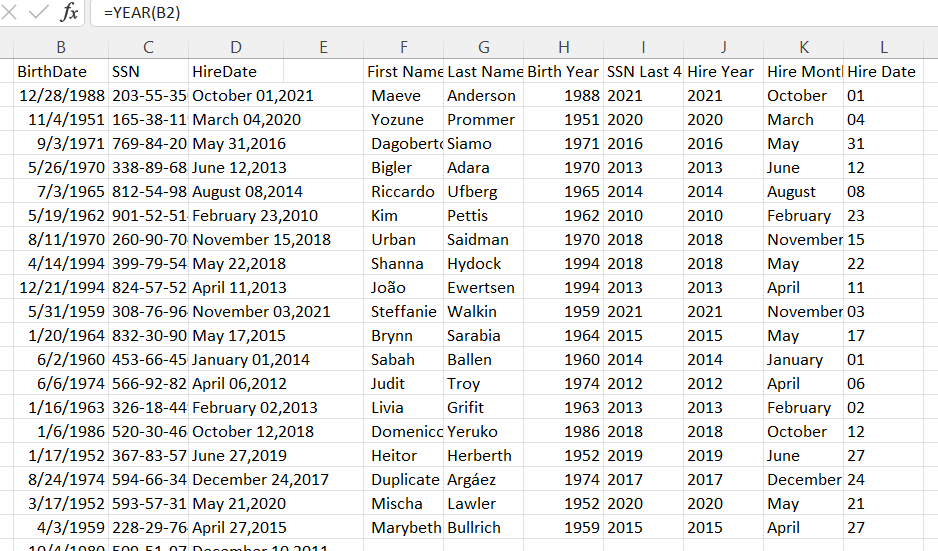
This was a fun challenge for me! It was one of the first times that I have used text manipulation in excel and so it was a great learning activity!
Challenge13_Transform_Your_Data! (1).xlsx (523.0 KB)
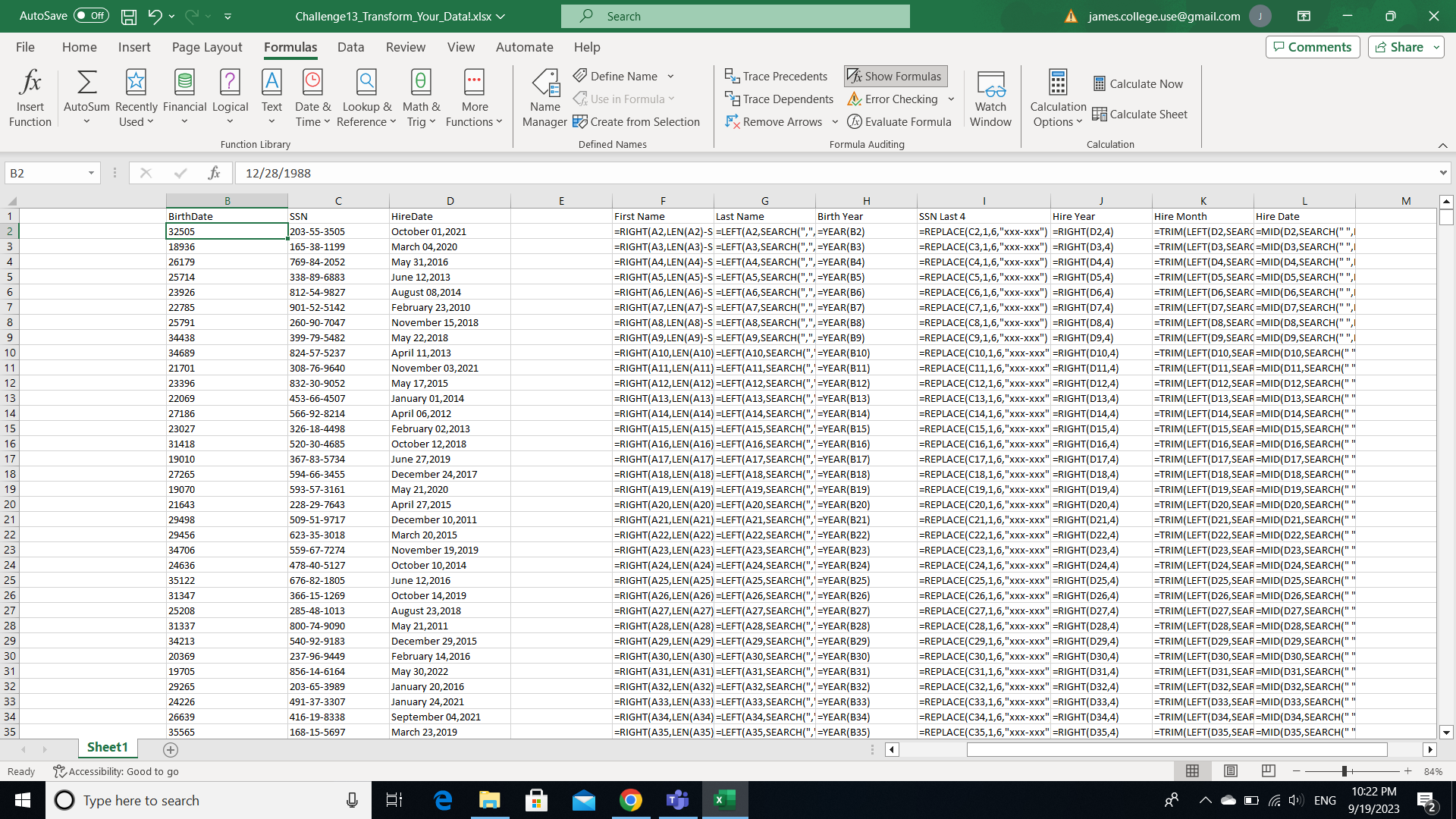
Challenge13_Transform_Your_Data!.xlsx (550.3 KB)
Finished this one! Kinda tricky, but I used a lot of functions I haven’t really used before. Great new exposure for me!
I used the left and right functions for a lot of them, but I also used LEN and SEARCH embedded in formulas to get what I wanted to the correct cells. Fun Challenge!
Jay of Challenge13_Transform_Your_Data!.xlsx (524.5 KB)
1 Like
Here’s my solution! I used the text to column and left and right functions.
Challenge13_Transform_Your_Data! (1).xlsx (528.8 KB)
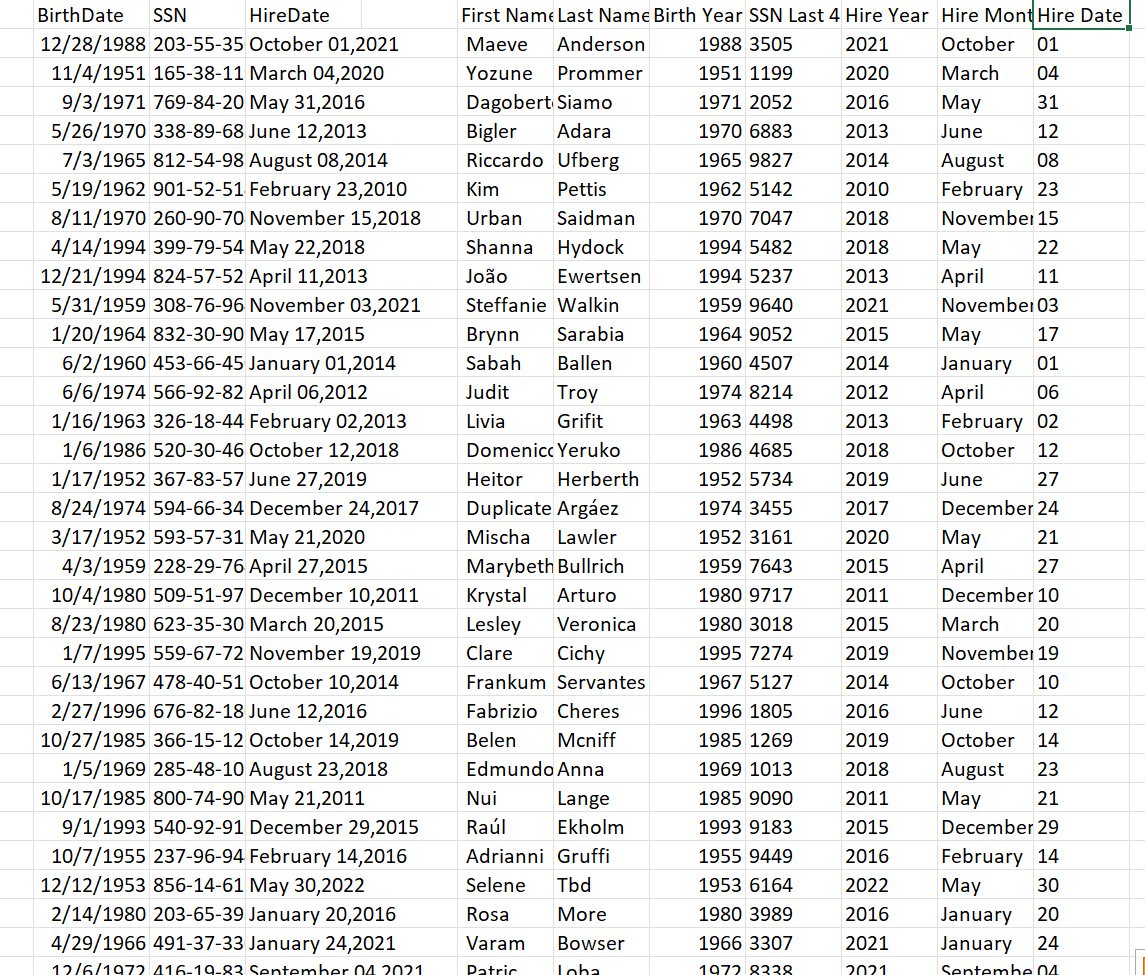
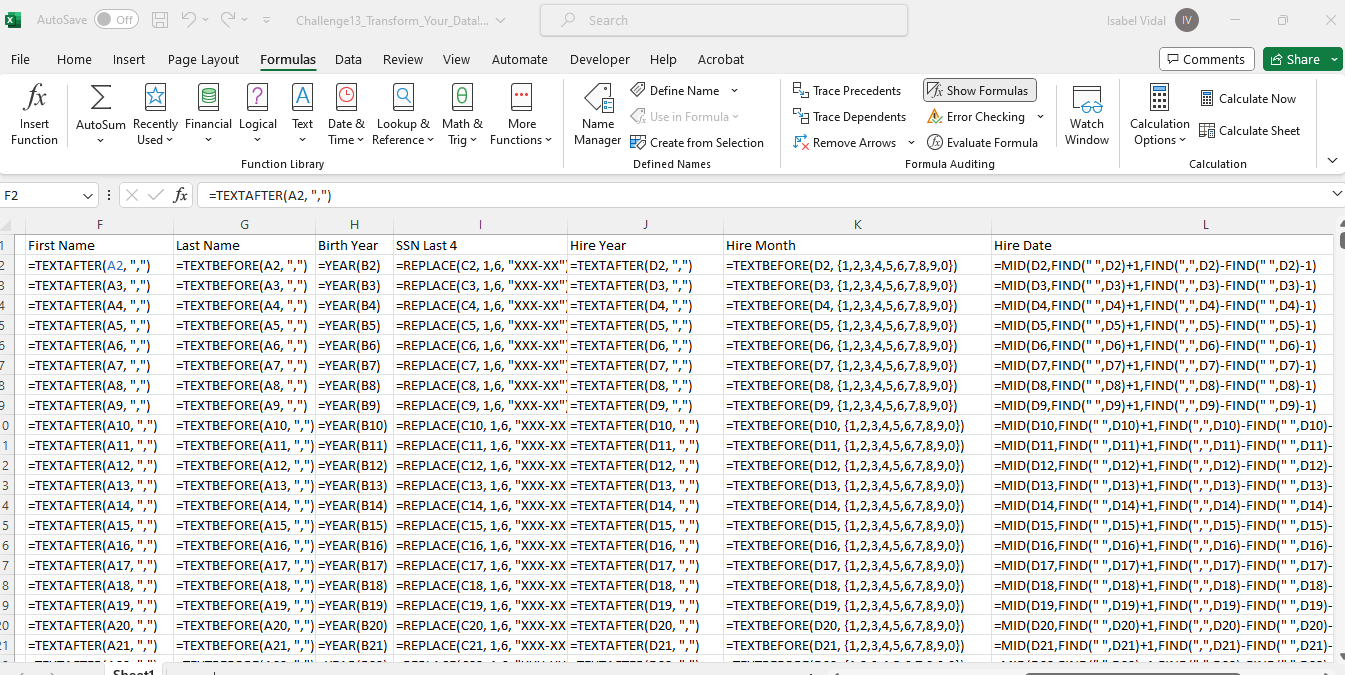
I like this challenge! I did it using different formulas than you and still worked! The picture shows what formulas I used.
2 Likes
Challenge13_Transform_Your_Data! - Ben Oehler.xlsx (545.8 KB)
Great challenge! Here is my solution:
I kept tying to use a right function for H3, and I couldn’t figure out how to get it to extract the actual year. Oh well, the year function worked just fine. All and all, fun refresher on these functions!
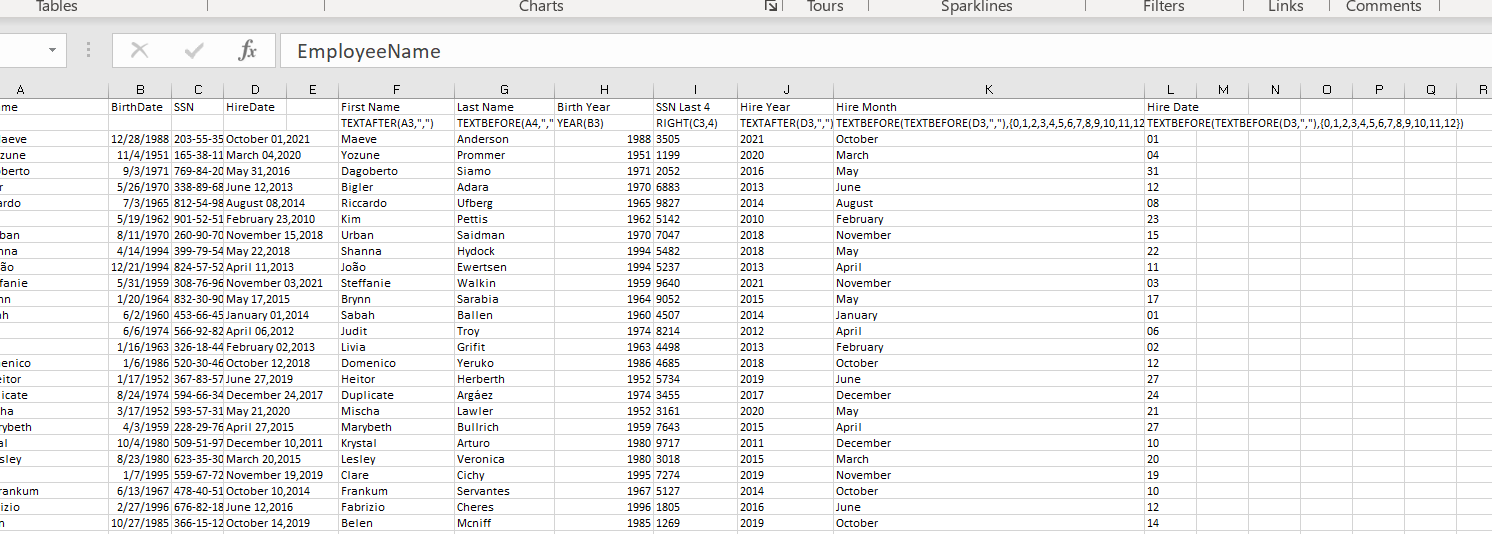
2 Likes
This was a great challenge especially after what we went through last class. I feel confident using TEXTAFTER and TEXTBEFORE functions now. I also liked how I could take this challenge further and seperate things out how I would like them.

1 Like
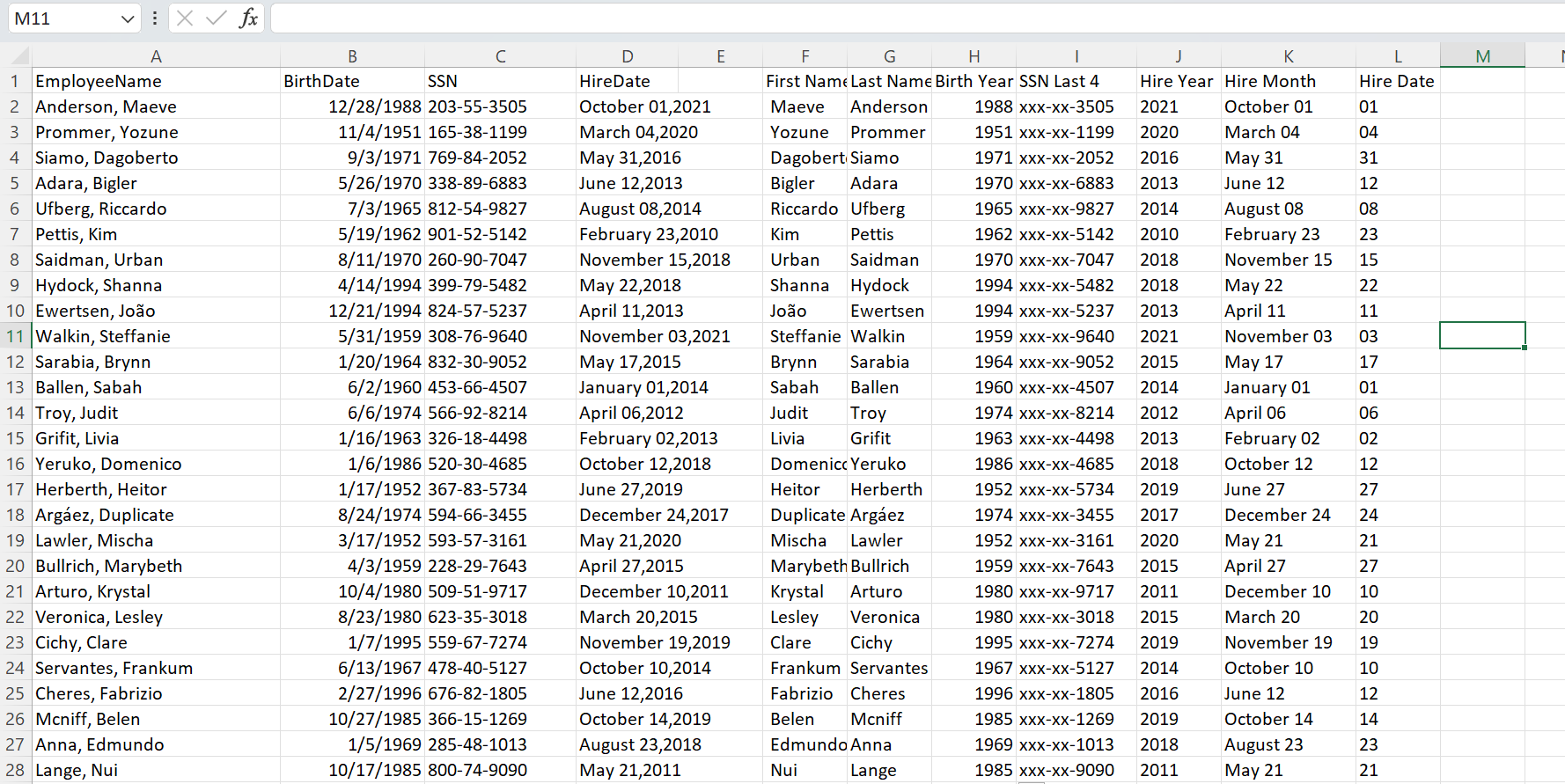
Challenge13_Transform_Your_Data!-DANE’S Solution.xlsx (580.5 KB)
Here is my solution! It is similar to many others posted although I did some nesting of equations for a couple of mine. The textbefore and textafter functions are helpful!
3 Likes
These are the formulas I used for each of the first row and then copied them down.
First Name
=TEXTAFTER(A2,“,”)
Last Name
=TEXTBEFORE(A2,“,”)
Birth Year
=YEAR(B2)
SSN Last 4
=REPLACE(LEFT(C2,7),1,7,“xxx-xx-”)&RIGHT(C2,4)
Hire Year
=TEXTAFTER(D2,“,”)
Hire Month
=TEXTBEFORE(D2,{1,2,3,4,5,6,7,8,9,0})
Hire Date (Day)
=TEXTAFTER(TEXTBEFORE(D2,“,”)," ")
Challenged me to try and find the simplest formula for the desired result.
This challenge was a lot of fun. I enjoyed the opportunity to practice the things we have been learning in class. I didn’t look at the solution so I’m not sure if I got the exact same formulas but I got to the right solution. Here’s what I did:
1: First Name =TEXTAFTER(A2,“, “), Last Name =TEXTBEFORE(A2,”,”)
2: =YEAR(B2)
3: =REPLACE(C2,1,6,“xxx-xx”)
4: I made a table of the hire dates and split the columns at every “/” I then ordered my columns the way the problem asked for them. Finally I copied the table results as values into my answer columns.
Great challenge!! I really enjoyed using the formulas I learned about yesterday: textbefore and textafter. Super cool how you can use multiple different formulas and still get the same desired outcome!
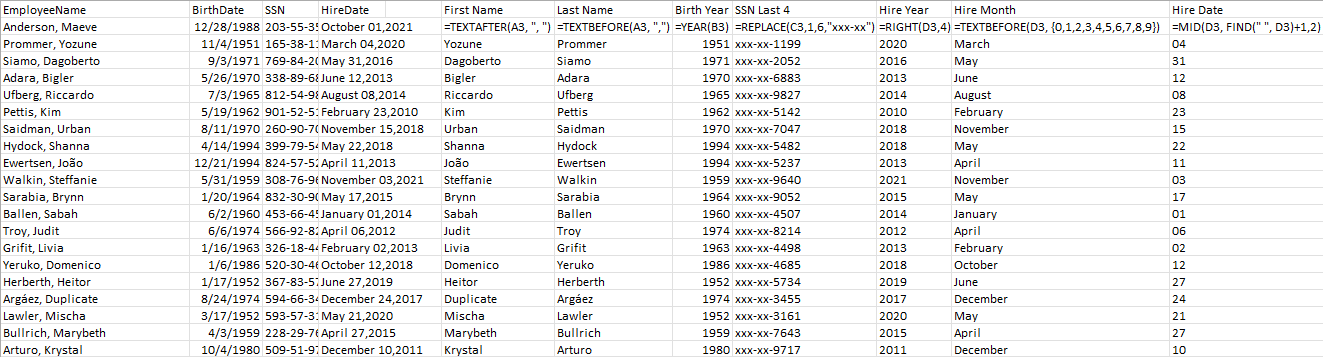
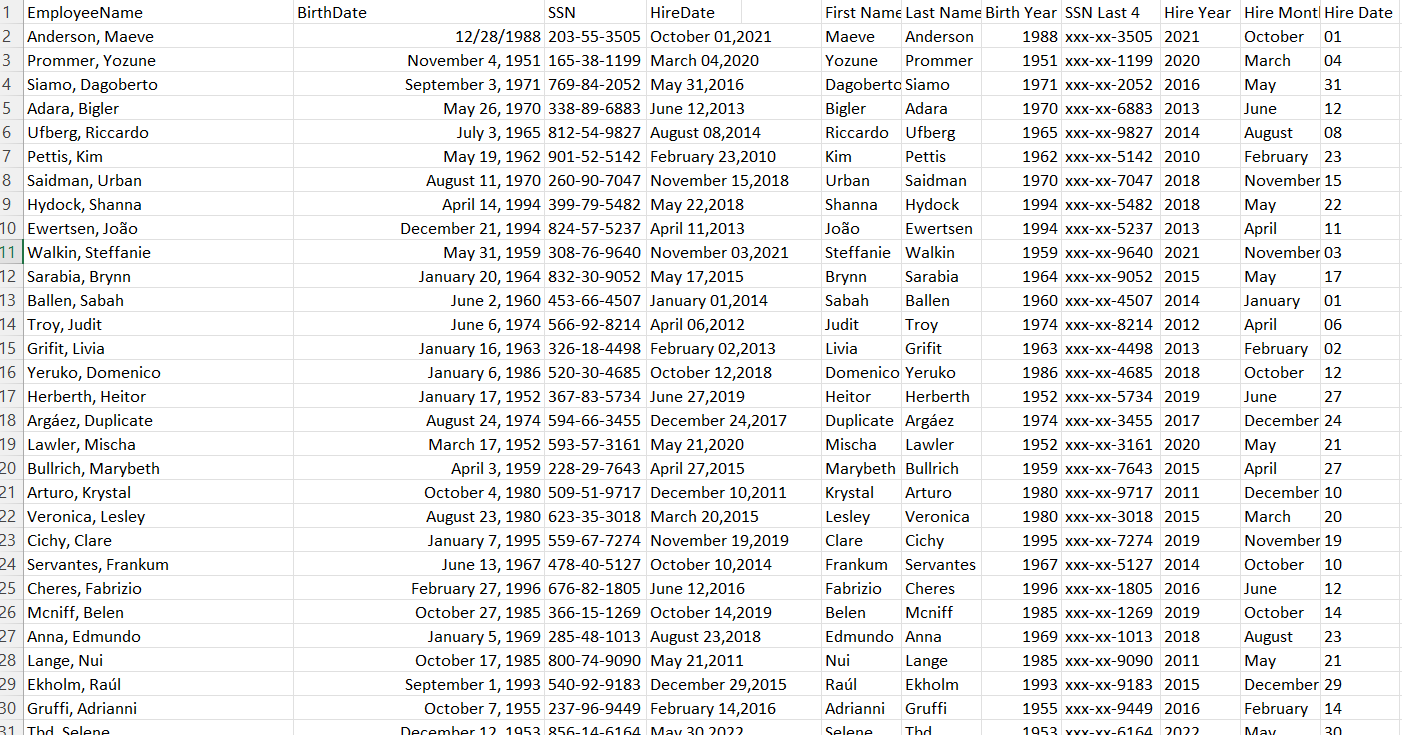
I like the functions that you came up with for splitting the hire date. That was a different approach to the problem than I took
Challenge13_Transform_Your_Data!.xlsx (574.0 KB)
I mostly used Textbefore and TextAfter to complete this, but it was nice to learn about how the FIND function could be utilized.