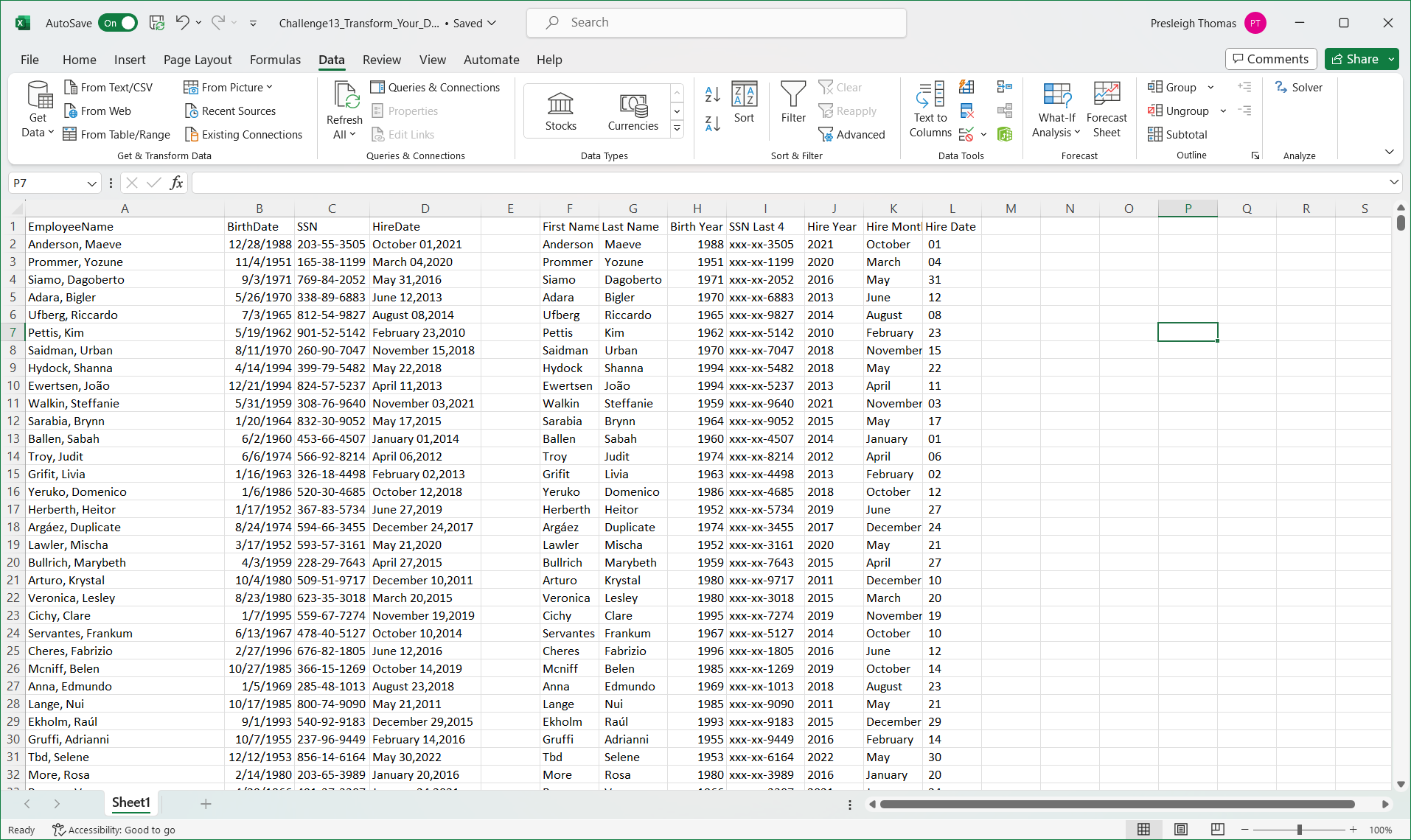
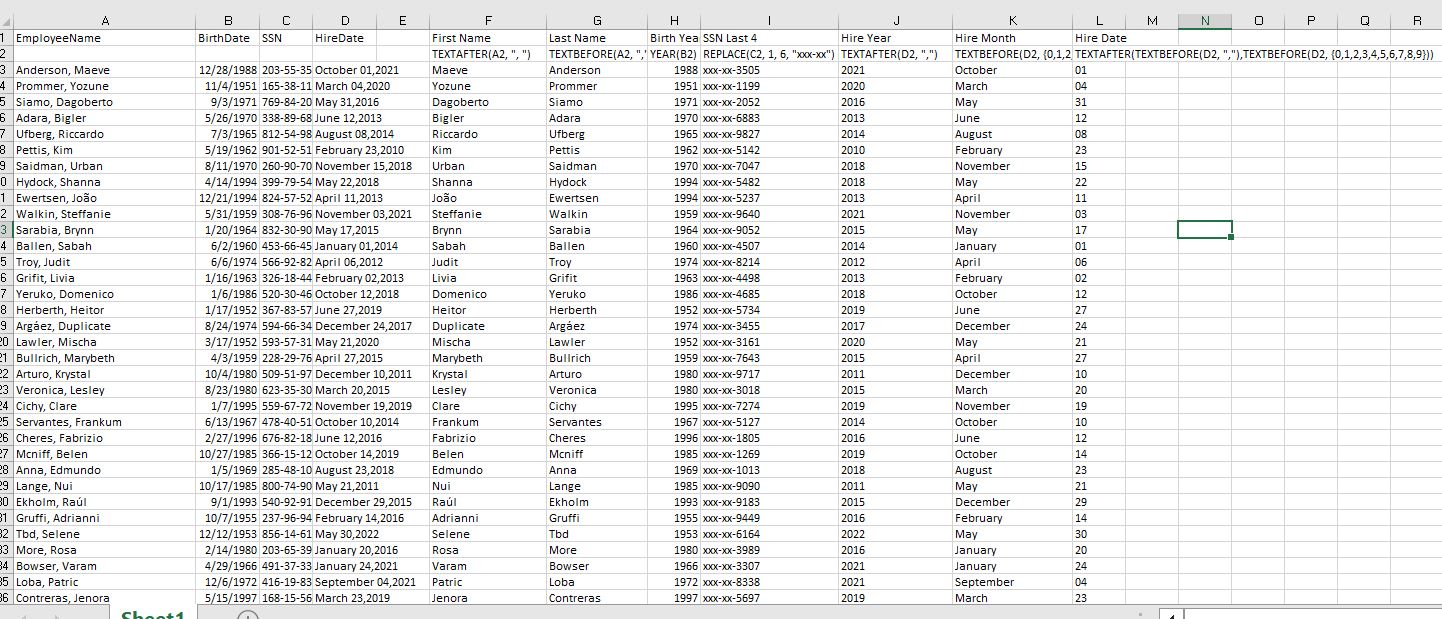
Awesome challenge! I enjoyed being able to work on formulas we’ve been practicing in class. I mainly used TEXTBEFORE and TEXTAFTER for my solutions.
Challenge13_Transform_Your_Data!.xlsx (566.2 KB)
Awesome challenge! I enjoyed being able to work on formulas we’ve been practicing in class. I mainly used TEXTBEFORE and TEXTAFTER for my solutions.
Challenge13_Transform_Your_Data!.xlsx (566.2 KB)
I enjoyed this practice text manipulation! I like using TEXTBEFORE and TEXTAFTER as they are very powerful and easy to use.
Challenge13_Transform_Your_Data!.xlsx (509.6 KB)
Here is my solution, great challenge! TechHub_ETLChallenge.xlsx
Challenge13_Transform_Your_Data!.xlsx (509.4 KB)
Challenge13_Transform_Your_Data!.xlsx (539.3 KB)
Here is my solution! I did some of the formulas different than the video but got the same answers. It’s cool that you can get the same answers using several different formulas.
This was a great refresher on a lot of the Excel formulas I had forgotten some of the arguments for!
Solved_Challenge13_Transform_Your_Data!.xlsx (492.5 KB)
Really cool on how you decided to do ‘Hire Month’ and ‘Hire Date.’ I did it differently, so it was cool to see another way to think about the solution.
Challenge13_Transform_Your_Data!1.0.xlsx (544.2 KB)
A fun challenge!
Nick Hill_Challenge13_Transform_Your_Data!.xlsx (539.7 KB)
Great to use these New formulas of =TEXTBEFORE and =TEXTAFTER to make things simpler and to get the same answer! Thanks for the challenge and the experience in using these functions!
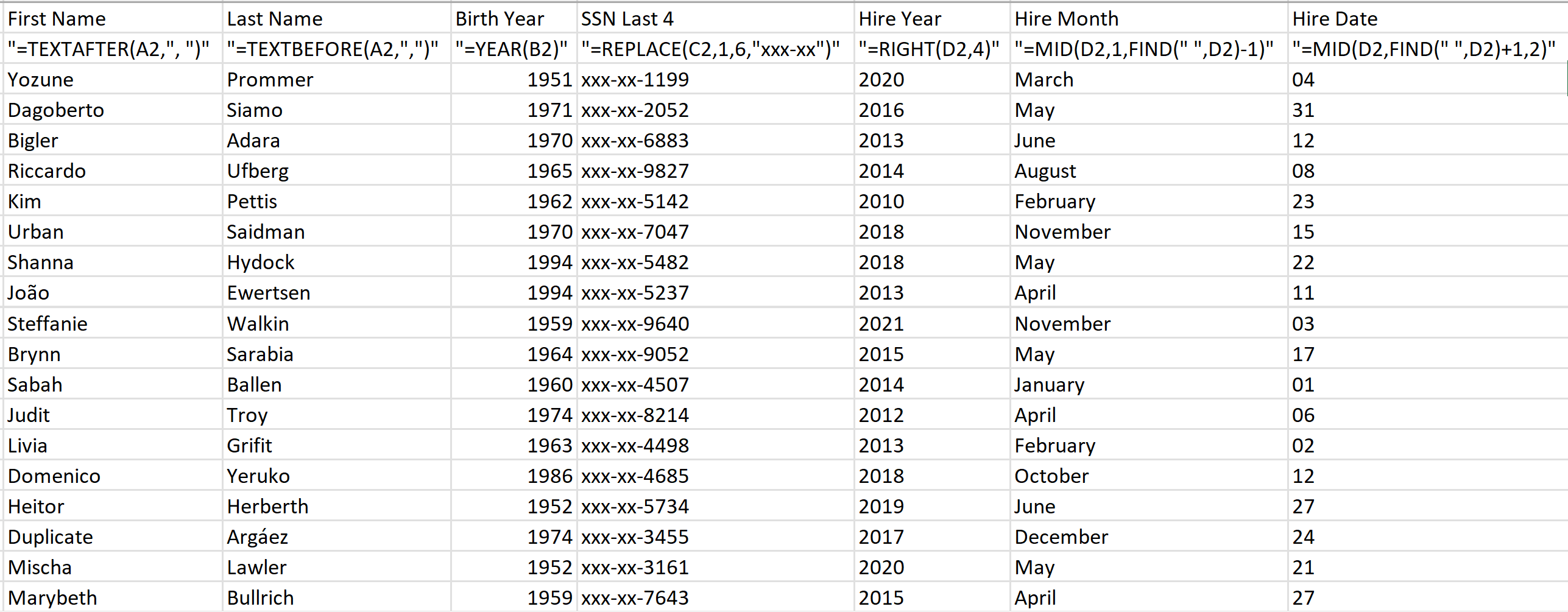
Here are the formulas that I used, I had tried this one before I knew how to use the TextBefore and TextAfter formulas, but it was definitely a lot easier and faster being able to do it this way.
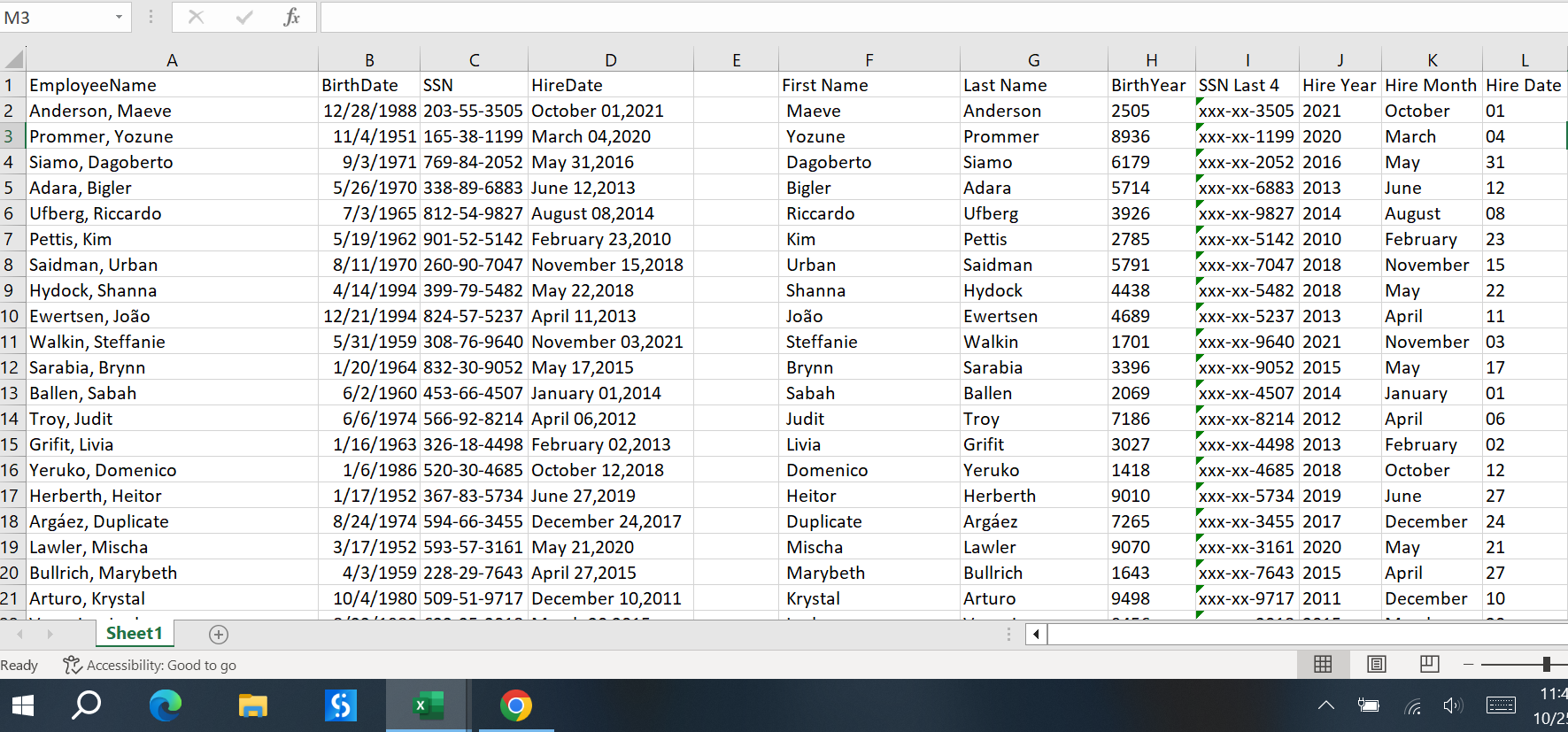
This is my solution to this problem! this was a fun problem to try and get creative with. I struggled to get my Birth Year to match the same format as the date but other than that I was able to figure out everything else.
Challenge13_Transform_Your_Data!.xlsx (214.0 KB)
I like how you used the YEAR FUNCTION to match the format of the date. Love this!
AG_Challenge13_Transform_Your_Data!.xlsx (545.1 KB)
Text manipulation is so fun! It’s awesome to practice the skills that I have learned through Excel. I had to remind myself on how to apply the formula to all the cells instead of clicking and dragging to make the formula to the bottom of the dataset. I liked using the LEFT, RIGHT, and REPLACE functions as well as some other ones. Check out my solution below (I removed the = sign so the solution was visible)!
0604_Challenge13_Transform_Your_Data!_Strong.xlsx (543.1 KB)
Interesting task! It reminded me of the importance of data types and conversions (I was running into issues at first with the “date” data type). I was able to use len(), right(), left() and find() functions.